
THE RETURN OF WINDYCAST
In this release, we are pleased to introduce you to the updated Windycast – a mechanism for controlling TVs from a mobile application.
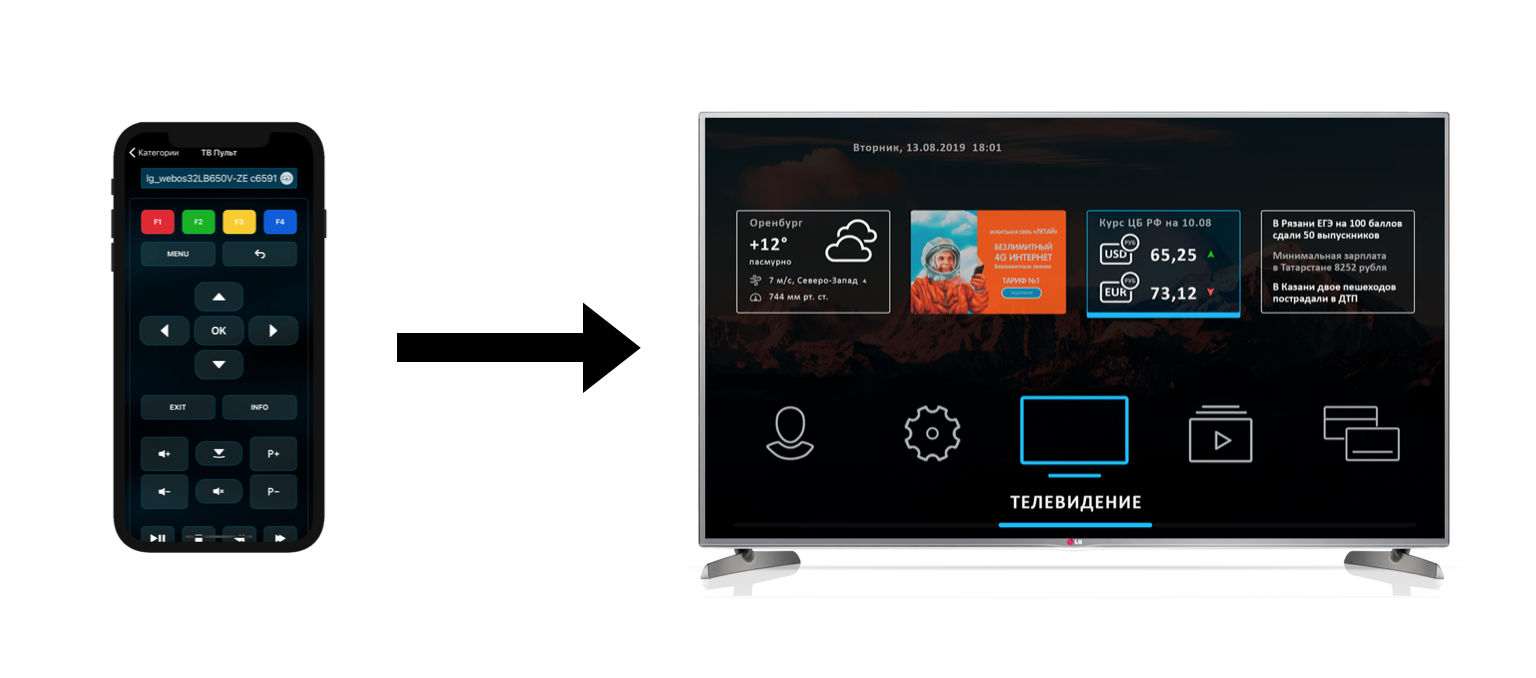
Those who have been with us for a long time have seen it work on our exhibition stands before, and in this release we present a new, improved and more stable version.
How does Windycast work?
- When it is turned on in the service, a new menu item “TV remote” appears in the mobile application, as well as a new icon in the channel viewing screen.
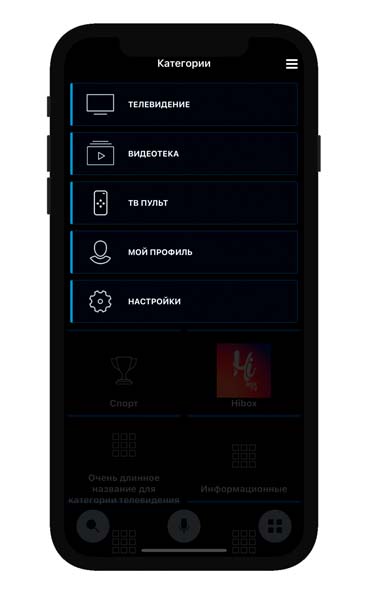
After clicking on it, the mobile application searches for all TVs and consoles that are now online and authorized by the same account, and gives the user the opportunity to connect to them.
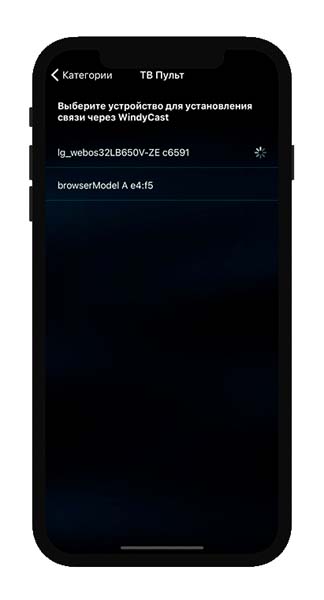
After confirming the connection on the TV screen, it is possible to use the mobile application as a remote, or one swipe to transfer the current viewing of the channel from a mobile device to the TV screen.
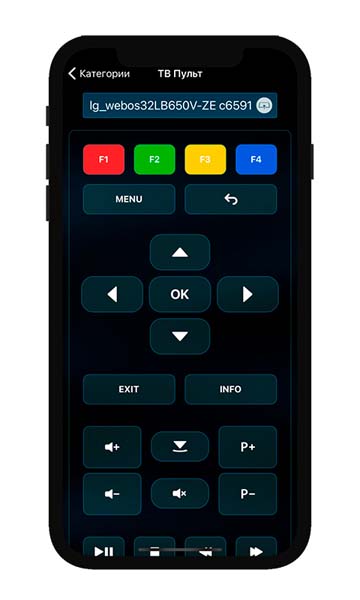
To obtain this functionality, it is required:
- Update
Smartybefore release version 1.84 - Update
engineandpatternpre-release - Receive an up-to-date assembly of a mobile client
- Raise a new service
Windyand set up a connection between him and Smarty - Prescribe the Windy service address in the configuration of mobile and portal applications
For details and conditions of connection, you can contact your manager, or at the address contact@microimpuls.com.
Detailed documentation: https://www.microimpuls.com/docs/smarty/extra-services-integration/windycast-configuration
PAYMENT BY QR IN IMPULSES AND FUTURES
Few people know, but in our templates there is the possibility of paying for the service from the TV screen using payment gateways integrated into Smarty. But many are skeptical about this method of payment, since entering card data from the remote is not the easiest and most convenient.
In release 1.84, we added a solution to this problem – payment using a QR code: on the TV screen, the user sees a QR code generated specifically for him, when hovering on which the subscriber can pay for the service using a smartphone (some payment gateways even allow you to pay using Apple Pay and Google Pay).
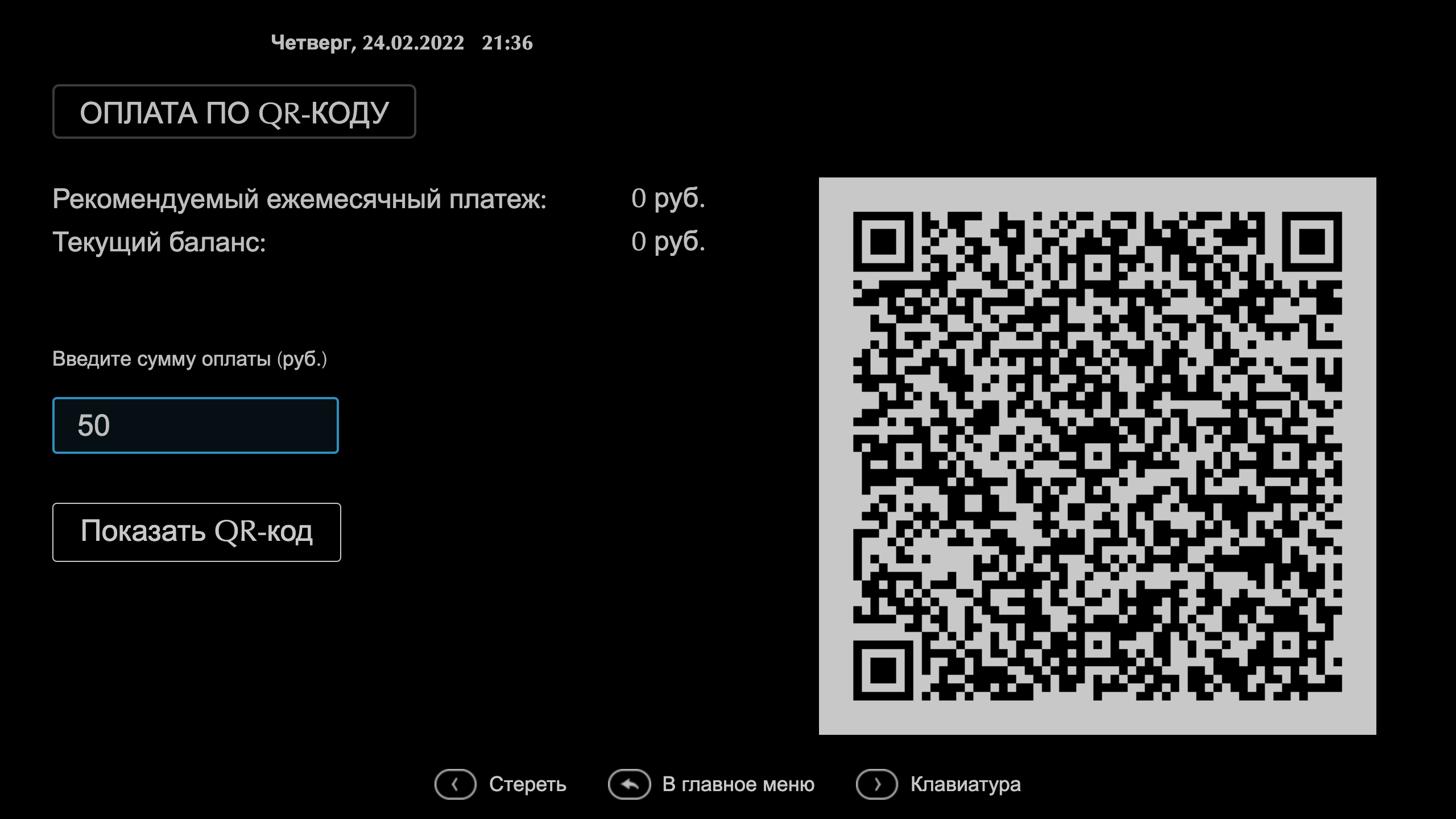
IN Futuristic payment with QR is available when setting up the QR Payment widget.
TURNED PULTS FOR FUTURISTIC
We have completed work on a new template mode – the adaptation of Futuristic for modern remotes with a truncated number of buttons:
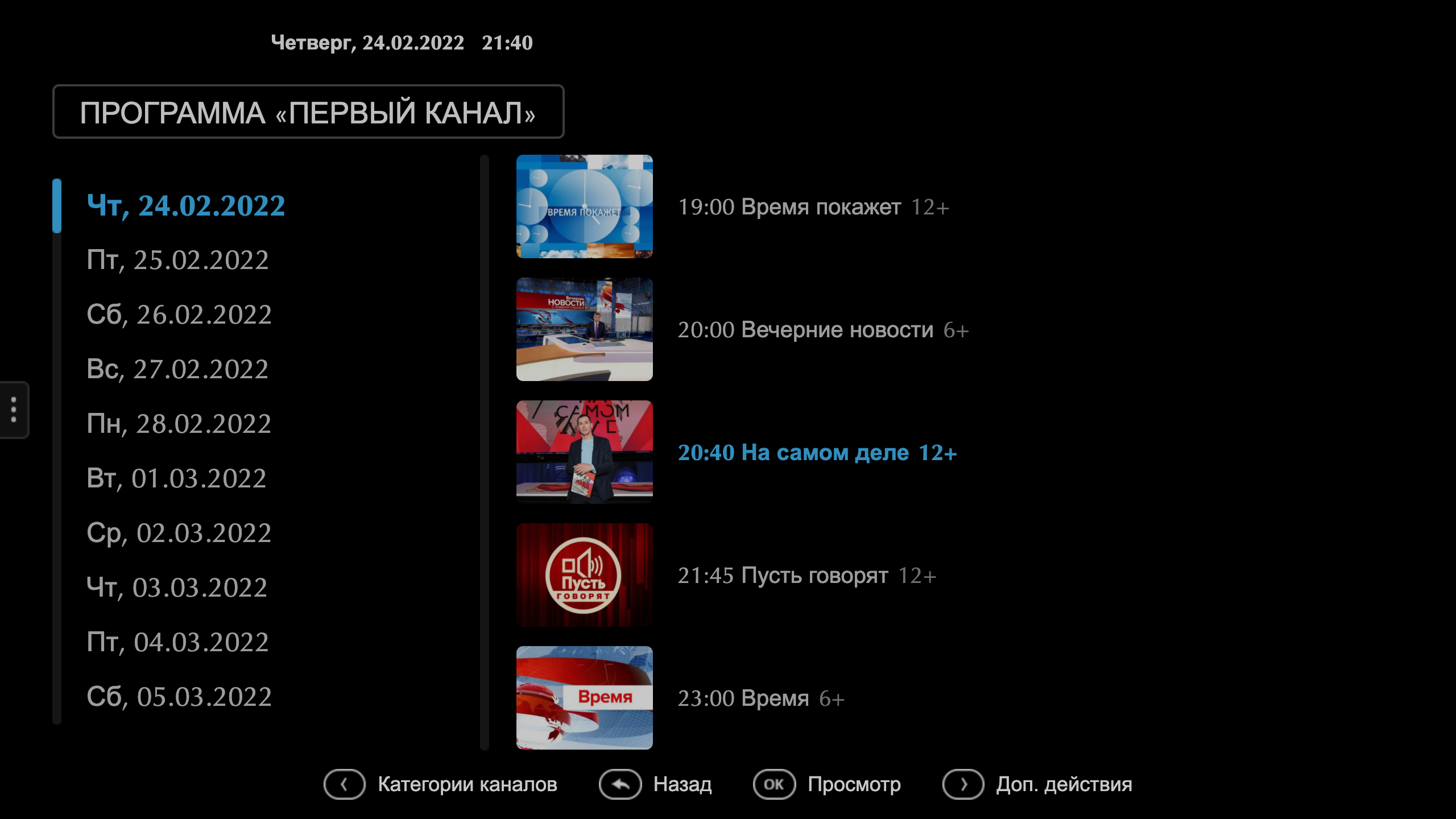

Option to enable this mode: https://micro.im/docs/smarty/portal-and-apps-settings/futuristic-settings#управление-шаблоном-разными-пультами
SCREEN ARCHIVE CHANGES IN FUTURISM
New options have been added for the Archive screen configuration:
archive_how_allNow you can hide the category “All channels” if you wish;filter_archive_byin the left column, you can use both genres and categories to filter.
More on the options: https://micro.im/docs/smarty/portal-and-apps-settings/futuristic-settings#внешний-вид-—-архив
CHANNELS WITH ARCHIVE IN IMPULS
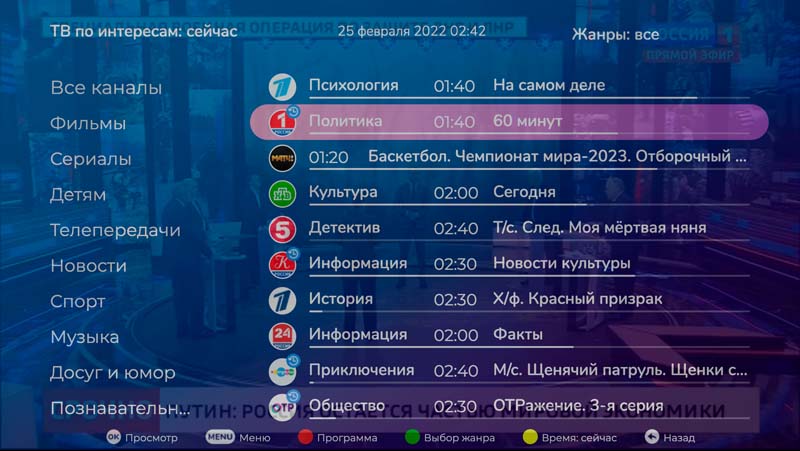
A long-awaited feature for many - channels on which there is an archival record, are now highlighted with a special icon:
CHANGES IN FUTUREISTICS
Hiding the actors' tape
New option show_actors it allows you to hide the tape with the actors on the film description page.

City in weather widget
For the weather widget added a new attribute show_current_city_name (prescribed for the widget in the attribute list in the admin Smarty), allowing instead of the word "Weather" to display the name of the selected city.
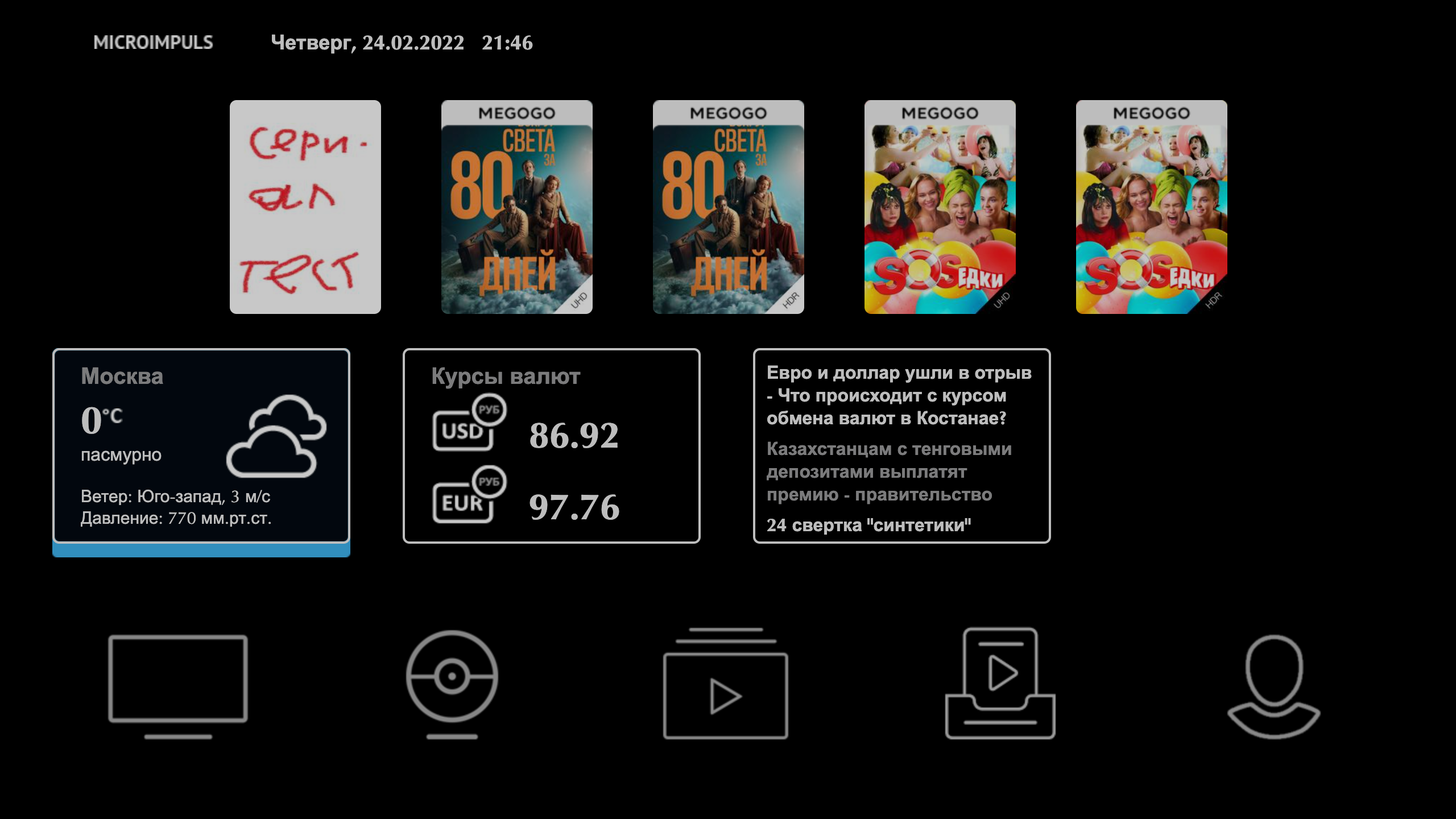
Weather widget documentation: https://mi-smarty-docs.readthedocs.io/ru/latest/service_configuration.html#section-32
New request in the form of password recovery
Recovery of the password from the application now supports confirmation of the phone number by SMS and uses a new method for this AccountPasswordReset instead AccountRegister.
